In view of this, we deem it necessary to provide prospective UTME candidates with the guidelines to register and obtain their NIN before the 2020 UTME registration begins as the registration is expected to commence soon. 2020 UTME Candidates are equally advised to start preparing for their exams using the JAMB CBT software and JAMB CBT app
What is NIN?
NIN simply means National Identification Number. It consists of 11 non- intelligible numbers randomly chosen and assigned to an individual after the completion of enrollment into the National Identity Database (NIDB).
Once a NIN is assigned to an individual, it can never be reassigned, given or used by another person – that makes it unique in nature. In the case of the demise of an individual, his/her NIN is retired once a death certificate is presented to the Commission and the individual’s death is established.
The NIN is used to tie all records about an individual in the database and is also used to establish or verify his/her identity. All citizens and legal residents in Nigeria, from age zero (birth) and above are eligible to enroll for their NINs.
NIN Registration Process
Supporting Documents
Walk into the nearest NIMC Enrollment Centre with your BVN if you have one and any of the following required Original and Valid supporting documents:
Old National ID Card
Driver’s License
Voter’s card (Temporary or Permanent)
Nigerian International passport
Certificate of Origin
Attestation letter from a prominent ruler in your community
Birth certificate
Declaration of age
Attestation letter from religious/traditional leader
NHIS ID card
Government staff ID card
Registered/recognized private organization staff ID card
School ID Card (private/public)
Tax Clearance certificate
Valid immigration documents
Registration At an Enrollment Center:
The whole process of registration can be carried out at an enrolment centre. However, to limit the amount of time you will spend at the enrolment centre, you can complete the first step of the registration online at (https://penrol.nimc.gov.ng/) print out the Barcode registration slip and proceed to an enrolment centre to complete the rest of the registration steps.
STEPS
Applicants are to walk into the enrollment Centre with a supporting document.
Applicant will be verified to ascertain if he/she has ever enrolled using the NIN verification portal.
Applicant will be issued an enrollment form to fill if he/she has not enrolled before. OR the printed Bar code slip (for those who applied online) will be collected if the applicant had per-enrolled earlier using the per-enrollment service.
Applicant’s forms will be vetted by a NIMC Official to crosscheck the information filled on the form against the supporting document provided and to check for errors/mistake filled on the form. Note: applicants who cannot read nor write should be accompanied by a literate individual who can do the form filling for him/her.
Applicant’s per-filled information will be inputted on the NIMC Software by a NIMC enrollment officer or the Bar code slip will be scanned by the NIMC enrollment officer to populate all the required field.
The enrollment officer will ask the applicant to double check his/her information for errors using the applicant monitor.
If the applicant is satisfied with his/her demographic information, the bio metrics (ten finger prints and facial image) of the applicant will be capture subsequently.
After completing the enrollment, a Transaction ID Slip will be issued to the applicant as an evidence of the transaction. However, the Transaction slip does not confer the right to National Identification Number. The applicant will be requested to come back for the NIN within 1-5 working days, as it is subjected to availability of network, authentication and verification.
A National Identification Number (NIN) Slip is issued to the applicants after processing.
The National e-ID Card will be Issued to applicant within 12months after Issuance of NIN barring any unforeseen circumstances.
Service Fee: ENROLLMENT IS FREE
Availability: Monday – Friday (8a.m. to 4 p.m.)
Note :
Minor applicants (0-15 years of age) should be accompanied by parents / guardians and can do the form filling for them.
Minor applicants should only bring original and valid birth certificate and NIN slip of one of the Nigerian Parent / Guardian.
The National e-ID Card will not be issued to minors until they become 16 years of age and above.
In the case of a minor, after completion of enrollment, a text message will automatically be sent to the Applicant, Parent or guardian to come for update when they become 16 years of age.
Here’s what to look for if you want to buy the best laptop possible
Which laptop should you buy isn’t a question with a clear obvious answer. No matter your price category, there are simply too many different types of laptops to choose from. More to the point, there is no single best laptop because there is no single kind of laptop user.
So when people ask us which laptop or laptop brand is the best, we don’t give them an easy answer. We give them a list. A set of criteria that everyone should consider before splurging on a new device.
1. Size
When it comes to laptops, size matters.
Depending on what you plan to be doing with your next laptop, you’ll want to make sure you pick the size that’s the right fit for you. Size isn’t like the RAM or ROM of a laptop, you can’t upgrade it later. You’re locked into whatever you select up-front, so choose wisely.
Laptops sizes tend to start at 11.6-inches and go all the way up to 17.3 inches. Most brands and OEMS like HP, Dell, ASUS and Acer tend to offer three display sizes – 13.3-inch, 15.6-inch and 17.3-inches. However, some vendors do sell laptops that fall outside these sizes including 11.6-inches, 12.5-inches and 14-inches.
Obviously, if portability is your priority, you’ll want to go for a smaller sized Windows laptop. They tend to be thinner and lighter than their larger counterparts. Look for laptops that have a screen that is either 12.5-inches or 13.3-inches in size, and a weight between 1kg and 1.5kgs.
However, keep in mind that smaller-sized 13.3-inch machines often don’t support the same high-end Intel Core i7 CPU or discrete graphics cards you’ll be able to find in their 15.6-inch counterparts. Most of the time, they’ll also feature a less-robust selection of ports. If the kind of work you intend to be using your new laptop for requires a larger display or standalone graphics power, you’ll probably need to look at a larger size.
Beyond specific sizing, there are several different classes of laptop to choose from. Ultra books tend to favor a slim and lightweight form-factor over high-end performance. Things like the ASUS Zenbook and Lenovo’s Yoga devices fall into this category.
By contrast, Notebooks tend to offer a good mix of power and portability. If you’re looking at notebooks, a good place to start is the Dell XPS 13 and HP’s Envy x360.
Convertibles (also known as 2-in-1 laptops or 2-in-1 PCs) expand on this by adding the ability to fold away (or remove) the keyboard and use your new laptop in tablet mode. Products like Microsoft’s Surface Go and Acer’s Chrome books fall into this category.
Finally, traditional clam shell and gaming laptops tend to boast bulkier form-factors but significantly-beefier specs.
The most important thing to consider here when looking for the best laptop you can buy is that you think about what you’re going to need that laptop to do. It’s rarely ever a case of one size fits all. Some users need something lighter and more portable. Other users need discrete graphics for things like video editing or running high end games. If you need a PC with an optical drive or long battery life, you’ll almost certainly have to look for something larger.
2. Screen quality
Since you’ll probably end up staring at your laptop screen hours at a time, you’ll probably want to make sure you get a screen that is comfortable to look at and use.
To start with, you’ll have to consider whether you want your next laptop to have a touchscreen. These days, touchscreens are very common and they can make some tasks easier than others. Unfortunately, they can also add a glossiness to the display which is sometimes undesirable. Glossy screens lead to reflections, which are a definite negative if you’re gaming, watching content or editing images and video content. For these reasons, you might want to consider a laptop that doesn’t have a touchscreen.
Next up, be sure to look at the resolution on any laptop you’re thinking of buying. A 1920×1080-pixel resolution (Full HD) should be considered if you want plenty of space to line up windows and keep things in view.
Select modern laptops also now offer 4K resolutions. However, these high-end display panels are generally a costly add-on to an already-expensive product. They’re only really going to be worth it for those who really need them, like content creation professionals.
Photographers and video graphers will also want to privilege laptops that offer better color accuracy and support wider color gamut and HDR standards over those that don’t.
Meanwhile, if you’re a gamer, it’s also worth taking the time to check the refresh rate on the display of any potential laptop. A faster refresh rate can often provide a sometimes provide a competitive advantage in online games, as it enables a smoother and more responsive play experience.
Lastly, viewing angles are extremely important. A laptop screen that touts IPS (in-plane switching) technology offers the widest viewing angles and the best user comfort. Chances are you’re not always going to be using your laptop in its natural habitat, so a laptop with an IPS display is usually preferred over the opposite.
If possible, take the time to go into a store and see the screen for yourself. Otherwise, rely on multiple reviews to get a good overview of the product and whether or not its screen will be able to suit your needs.
3. Keyboard quality
For long typing sessions, you’ll need to get a laptop that has a comfortable keyboard. You don’t want to get a keyboard that packs in every key under the sun (think keyboards that have squished in number pads) because that can translate to a poor overall user experience when hunting for specifics like the arrow or delete keys.
You want a keyboard that has a comfortable layout with full-sized keys and some space around the arrow keys. The keys should have adequate travel on the down stroke and snappy responsiveness when you let them go.
Make sure the keyboard is also back lit, so that you can type with an easier view on the keys in dimly lit environments.
As with the screen, it helps to try before you buy, especially if your main task will be typing.
4. CPU
It’s hard to go past any of Intel’s Core-based CPUs when buying a new laptop. Think Core i3, Core i5, and Core i7. An Intel Core Processor offer the best performance when it comes to multitasking and multimedia tasks. Core i3-based notebooks are generally found in entry-level systems, while Core i5 makes up the majority of mainstream computers.
Core i7-based systems are for those of you who want the best performance from your laptop. However, note that with a Core i7-based system, heat coming through the base of the laptop can be cause for concern, especially if you plan to actually use the laptop on your lap a lot of the time.
Some larger laptops also now incorporate Intel’s i9 Core processors. Laptops running on i9 Core processors are even more powerful than laptops running on i7 Core processors. They’re able to rival desktops for performance but they do come with a significantly-higher cost than a laptop with an i7, i5 or i3 Core Processor.
Select vendors now also offer laptops and notebooks that run on AMD’s Ryzen Mobile CPUs. If you’re a gamer, this can be a particularly compelling option worth considering. Ryzen Mobile CPUs tend to be paired with AMD’s own Vega graphics chipsets, which are currently far better for gaming than Intel’s own onboard graphics.
5. RAM
In the old days, you rarely needed more than 4GB of RAM or more to get the best out of your system.
These days, you’ll probably want to think about 8GB as a minimum. If you’re a power-user, 16GB is the way to go. Meanwhile, gamers should look at dialing things upwards all the way to 32GB if they want the best experience.
More RAM allows for more applications to be run at the same time, and for more data to be quickly accessible by the system at any one time, which comes in handy for tasks such as editing photos or video content.
See more and also like the page
https://www.facebook.com/Hansonanie/
Microsoft PowerPoint is powerful software that allows you to create captivating slide presentations that can easily be shared on the web. If you want to present any information creatively and professionally, Microsoft PowerPoint is the perfect tool.
Microsoft Office Specialist (MOS) in PowerPoint certification proves you have core to advanced skills in Microsoft Office applications. Earning an Office certification is helpful for those new to the workforce or transitioning to a more analytical role and gives you a leg up against competing candidates.
PowerPoint classes cover a variety of topics, including:
POWERPOINT BASICS – Learn to use the software properly and get a brief grasp over its most important components and tools. I will show you the essentials, so we can work swiftly in PowerPoint going forward.
ANIMATION BASICS – Learn how to properly use animation. Discover the different types of animation and how to properly work on the animation timeline. This will make your animation work much easier.
SLIDE DESIGN – This chapter is the main slide and presentation design section of this course. Since you already learned the basics in the previous chapters, it’s time for us to roll out the big guns and design like a madman (or woman)! I will teach you a consistent, well-prepared design to give you a great starting point for your PowerPoint presentations.
ANIMATION DESIGN – In this chapter, we’ll animate some of the slides we prepared and then you’ll learn how to make simple explainer videos or kinetic typography in PowerPoint. I will show you several outstanding tricks which you can use in your daily workflow!
VIDEO CREATION – Learn how to create explainer videos and online lectures using only PowerPoint. I’ll show you how to record a presentation with your microphone and export a video that will be ready to publish anywhere online
POWERPOINT TEMPLATES – Every respected PowerPoint designer knows how to create PowerPoint templates. For your business, your clients, or as products for sale, making templates is an essential skill to have and utilize!
AFTERWARDS: MORE SLIDE DESIGN, MORE TRICKS, MORE ANIMATION PROJECTS! Once you have a solid foundation of slide design and animation, we can explore other possible projects to do. We will create a few more animations, text reveals, and videos that are useful for creating more of your content.
Access training from witboydino konecpt Nigeria limited will help prepare you for a Microsoft Office Specialist (MOS) PowerPoint certification.
Everything you need to make advanced PowerPoint presentation slides, animations & videos. Get advanced at PowerPoint
What you’ll learn
Get comfortable with basic and advanced PowerPoint features
Rapidly learn PowerPoint by working with an experienced professional
Create engaging and well-designed slides and animations
Be able to animate any kind of object and slide in PowerPoint
Get better as a graphic designer and digital artist
Create simple explained videos ready to publish online
Build PowerPoint templates quickly
Requirements
Have PowerPoint 2010 / 2013 / 2016 / 2016 Installed
I will explain all basics about PowerPoint and Animating in it, so we can smoothly start the real work
Basic knowledge of PowerPoint will be helpful but is not mandatory
Be prepared and ready to work! This will be an entertaining and professional ride to take!
After completing this course, you will:
Have a solid understanding of how to work efficiently in PowerPoint without wasting time and effort
Be able to produce top-quality slides and presentations (including videos) to the highest industry standards
Gain complete control of the animations you want to create
Get better at designing, presenting, and animating to help you advance as an active entrepreneur, creator, and content publisher
A busy, vibrant, goal-oriented woman is so much more attractive than a woman who waits around for a man to validate her existence. Single is no longer a lack of options – but a choice. A choice to refuse to let your life be defined by your relationship status but to live every day Happily and let your Ever After work itself out. If you can’t take care of yourself, you can’t take care of someone else.
My alone feels so good, I’ll only have you if you’re sweeter than my solitude. I love being single. I can come and go as I please and stay out as late as I want to. I never found a companion that was so companionable as solitude. Being single doesn’t necessarily mean you’re available. Sometimes you have to put up a sign that says, “Do Not Disturb” on your heart. Single is not a status.
It is a word that best describes a person who is strong enough to live and enjoy life without depending on others. Being single doesn’t mean that you know nothing about love. Sometimes being solo is wiser than being in a false relationship. I think it’s very healthy to spend time alone. You need to know how to be alone and not defined by another person. If we seek paradise outside ourselves, we cannot have paradise in our hearts. Single is an opportunity to live life on your own terms and not apologize. He sleeps fastest who sleeps alone. He who knows others is wise. He who knows himself is enlightened. I don’t like to be labeled as lonely just because I am alone.
You do not need to be loved, not at the cost of yourself. The single relationship that is truly central and crucial in a life is the relationship to the self. Of all the people you will know in a lifetime, you are the only one you will never lose. If you really are going to be a happy single, you have to stop treating being single as the annoying time that you pass between relationships and embrace it. Rather than focusing on what you lack, focus on what you have: You. I like being single, I’m always there when I need me. I celebrate myself, and sing myself. Freedom is nothing else but a chance to be better.
If you aren’t good at loving yourself, you will have a difficult time loving anyone, since you’ll resent the time and energy you give another person that you aren’t even giving to yourself. When we cannot bear to be alone, it means we do not properly value the only companion we will have from birth to death ourselves.
Being single entitles you to not ask someone’s opinion before you do something to mess up your own room, your credit report or even your life. I think, therefore I’m single. Some people think it’s wrong, being single isn’t right. But you hurt the right person you’ll be wrong all your life.
Being single is about celebrating and appreciating your own space that you’re in. That we find a crystal or a poppy beautiful means that we are less alone, that we are more deeply inserted into existence than the course of a single life would lead us to believe. To go out with the setting sun on an empty beach is to truly embrace your solitude. Solitude is the place of purification. Nowhere can man find a quieter or more untroubled retreat than in his own soul.
We often think of computers as a very modern phenomenon, but there were actually plenty of computers around 50 years ago. They just weren’t an everyman commodity, instead limited to government and corporate use. And they certainly weren’t small. Some of them had imaginative names like Whirlwind, Colossus and Pegasus, while others were slightly less poetic with names like Z4, AN/FSQ-7, and ENIAC.
Below we have listed as many as 19 examples of computers from the early days, pioneering efforts that although cutting edge in their day, now look lovingly retro.
These computers didn’t use the same kind of components as we do today (not to mention software). The computers in the 1940s and 1950s were mostly based on vacuum tubes. Transistors showed up late in the game, and integrated circuits were just a distant dream and didn’t start showing up in computers until the 1960s, and then in very limited capacity. How tempting it would be to travel back in time and show the engineers of these computers a normal modern-day PC, just to see their reaction.
We have listed the completion year for each computer, although work on them had often begun several years earlier (they were huge projects). We’ve arranged them in chronological order, oldest first. Please note that these are just a sample; there are plenty we didn’t include (in order to make this a blog post and not a book ).
Z4
Year: 1944
Designed by the legendary German engineer Konrad Zuse, the Z4 was a follow-up to its pioneering predecessor, the Z3 computer he built in 1941 (the world’s first programmable, automatic computing machine). The Z4 used about 4,000 watts of power and ran at approximately 40 Hz. It had 64 32-bit registers, the equivalent of 512 bytes of memory. One addition took 0.4 seconds.
Above: The Z4 computer, as seen in a German museum (in Munich).
Colossus
Year: 1944
Two generations of Colossus, the Mark 1 and Mark 2, were used by British code breakers to decry pt coded German messages at the end of WW2. It processed 5,000 characters per second (it could process faster, but then the paper tapes holding the data would break). The existence of Colossus and other British code breaking machines remained secret until the 1970s out of fear that widespread knowledge would encourage more efficient encryption algorithms.
Above, top: The Colossus in its heyday. Note the punched paper tape running on the right side. Above, bottom: A reconstructed Colossus.
ENIAC
Year: 1946
When the ENIAC was announced in 1946 the press immediately started calling it a “Giant Brain”. ENIAC was the world’s first general-purpose electronic, digital computer and is probably the most famous of the ones included in this article. It weighed 27 tons. Among other things, ENIAC was used for calculations to create the hydrogen bomb. Programming the machine could take weeks, since after the program had been figured out on paper you first had to manipulate the various switches and cables that controlled the programming and then follow that with verification and debugging.
Above, top: The ENIAC in all its glory. Above, bottom: Old-school programming?
Whirlwind
Year: 1951
The Whirlwind was the first computer to use video displays for output. The first version had 512 bytes of main memory and could do 20,000 instructions per second, although a switch to a different kind of memory later doubled its performance and made it the fastest computer of its time.
Above, top left: The Whirlwind. Above, top right: Closeup of the circuitry. Above, bottom: The control room.
UNIVAC I
Year: 1951
An acronym for UNIVersal Automatic Computer, the UNIVAC I was the first US-produced commercial computer. It was designed by the inventors of the ENIAC. A total of 46 systems were built and delivered. It weighed 13 tons (29,000 pounds), ran at 2.25 MHz and could perform 1,905 instructions per second. The UNIVAC I cost up to $1.5 million per system.
Above: The UNIVAC I, built by Remington Rand (see their nifty logo top left in the image).
WITCH
Year: 1951
Short for the Wolverhampton Instrument for Teaching Computing from Harwell, the WITCH was also known as The Harwell Dekatron Computer. It was slow (a multiplication took 5-10 seconds), but this was justified by its ability to run long periods of time unattended. It could therefore be left on its own with a large amount of input data. At one point it was left running over the Christmas and New Year holiday and was still working when the staff came back 10 days later.
Above: The WITCH in use. Is it just us, or do they look a bit confused?
BESK
Year: 1953
Pingdom being Swedish in origin, we had to include this Swedish computer from 1953. BESK stands for Binär Elektronisk SekvensKalkylator, which is Swedish for Binary Electronic Sequence Calculator. The main memory was 512 40-bit words, the equivalent of 2,560 byte. An addition could be performed in 56 microseconds, and a multiplication in 350 microseconds. For a short time, it was the world’s fastest computer. Small aside, “besk” means “bitter” (as in taste) in Swedish, but besk is also an alcoholic beverage from the south of Sweden. The name was a pun sneaked in by the computer’s creator, who had previously had the computer name COGNAC rejected by officials.
Above: The control panel for the Swedish BESK computer.
IBM 702
Year: 1955
The IBM 702 had been announced as early as 1953, but the first production model wasn’t installed until 1955. It was a commercial computer that could be leased from IBM. The system could have a maximum of 11,000 7-bit characters of main memory, i.e., roughly 10 kilobytes. It could do 3,950 additions or subtractions per second, but multiplication and division were significantly slower.
Above: An IBM 702 installation.
IBM NORC
Year: 1954
The IBM Naval Ordnance Research Calculator was arguably the first supercomputer and was the most powerful computer of its time. It could perform 15,000 operations per second, and the first version had 2,000 64-bit words of main memory, roughly the equivalent of 16 kilobytes.
Above: Various angles of the IBM NORC.
IBM 305 RAMAC
Year: 1956
This computer is most famous for being the first commercial computer delivered with a hard disk drive. The hard disk drive could store a total of just under 5 MB and consisted of 50 24-inch diameter disks. The 305 RAMAC was one of the largest computers IBM ever built. (If you find ancient hard drives fascinating, check out our post about the history of computer data storage.)
Above: Yes, those huge units in the foreground are hard disk drives. Each storing a massive 5 MB…
Bendix G-15
Year: 1956
The Bendix G-15 weighed 450 kg (950 lb) and cost around $60,000. It had 2,160 29-bit words of memory, the equivalent of about 7.6 kilobyte. The G-15 has sometimes been called the first personal computer, although there are disagreements about this. More than 400 were made.
Above: The Bendix G-15. It looks like a very big tower desktop computer. Kind of.
Pegasus
Year: 1956
The British computer Ferranti Pegasus was designed and built to be cheap and reliable. It had 5,120 40-bit words of memory, the equivalent of 25 kilobyte, plus 56 words (280 byte) of fast memory. A Pegasus 2 from 1959 is still operational at the Science Museum in London. It is the world’s oldest working digital computer.
Above: A Pegasus 2 at the Science Museum in London. The cabinet was built by Rolls Royce, hence the use of car door handles for the doors. Note also the inserted clock at the short end.
AN/FSQ-7
Year: 1958
A successor to the Whirlwind, based largely on the design of the never-realized the AN/FSQ-7 was developed by IBM in collaboration with the US Air Force to be used with the SAGE air defense system. It is sometimes incorrectly referred to as the Whirlwind II. One computer took up 2,000 sqm of floor space (roughly half an acre) and weighed 275 tons. They are the largest computers ever built (52 of them were made). The AN/FSQ-7 could perform about 75,000 instructions per second.
Above, top: An installation of the AN/FSQ-7. Each cabinet a built-in phone to save time when calling in problems (seen here at the short end of the nearest cabinet). Above, bottom: SAGE control consoles. A sign of different times: each console had a built-in cigarette lighter and ashtray.
IBM 7090
Year: 1959
A typical IBM 7090 system cost $2.9 million and was designed for large-scale scientific and technological applications. Among other things, it was used by NASA to control space flights. A 7090 system is featured in the movie Dr. Strangelove. In 1961, a later version, the 7094, became the first computer ever to sing (the song “Daisy Bell”). This was the inspiration for a scene in 2001: A Space Odyssey.
Above:The IBM 7090. Trivia: The second man on the left is Smith DeFrance, founding director of the NASA Ames Research Center.
AKAT-1
Year: 1959
The Polish AKAT-1 was the world’s first transistor-based differential analyzer, designed specifically to solve systems of differential equations. It was never mass produced due to the country’s policies at that time.
Above: The AKAT-1.
Datasaab D2
Year: 1960
Never massproduced, the Datasaab D2 was a concept computer build in Sweden. It weighed “only” 200 kg and could be placed on a desktop. It held the equivalent of 15 kilobyte of memory and could perform 100,000 additions per second. It was a prototype designed to test the feasibility of computerized navigation aid in aircraft. Datasaab was the computer division of the aircraft manufacturer Saab, which made fighter jets for Sweden.
Above left: The Datasaab D2 in its entirety. Above right: Closeup of its control panel.
BRLESC I
Year: 1962
The name BRLESC is an acronym for Ballistic Research Laboratories Electronic Scientific Computer. It was, as its name suggest, designed primarily for scientific and military tasks. It could do five million operations per second and had 4096 72-bit words of memory, the equivalent of 36 kilobyte.
Above: The awesome-looking console for the BRLESC I computer.
Honeywell 200
Year: 1963
The Honeywell 200 and its successors were introduced to compete with affordable commercial computers from IBM (specifically the IBM 1401). The native assembly language used to program the Honeywell computer was named Easycoder. Yes, at that time, assembly language was considered easy to code in. Honeywell ran an ad campaign over several years that they called the Liberator, using various very creative sculptures made from computer parts (one example available here).
Above: The H200 at work.
UNIVAC 1108
Year: 1964
The transistor-based UNIVAC 1108 supported up to three CPUs and up to 262,144 36-bit words of memory (more than 1 MB). The memory used integrated circuits (quite rare at the time) instead of the thin film core memory used in its predecessor, the 1107.
Above: A later model of the 1108 from 1969.
Final Words, Acronyms and the MANIAC
As you can see from some of the examples above, acronyms were highly popular. Some scientists were so fed up with this acronym mania that they started mocking it. There was for example a computer called MANIAC (I and II), which stood for Mathematical Analyzer, Numerical Integrator, and Computer.
It’s fascinating to look back and see how things were in the early days of computing, and it truly illuminates how far we have come. Today we have more computing power in our pocket than what would fit in entire buildings in the past. Our most modest smartphones widely exceed the performance and storage capacity of these early behemoths.
Looking for more articles on the history of IT? Check out the list of 10 historical software bugs (with extreme consequences) and our guide on the history of computer date storage.
systems software is computer software designed to provide services to other software. Examples of system software include operating systems, computational science software, game engines, industrial automation, and software as some service applications. In contrast to system software, software that allows users to do things like create text documents, play games, listen to music, or web browsers to surf the web are called application software. The line where the distinction should be drawn isn’t always clear. All operating systems bundle application software. Such software is not considered system software when it can be uninstalled usually without affecting the functioning of other software. Exceptions could be e.g. web browsers such as Internet Explorer where Microsoft argued in court that it was system software that could not be uninstalled. Later examples are Chrome OS and Firefox OS where the browser functions as the only user interface and the only way to run programs (and other web browser cannot be installed in their place), then they can well be argued to be (part of) the operating system and then system software. Another borderline example is cloud based software. This software provides services to a software client (usually a web browser or a JavaScript application running in the web browser), not to the user directly, and is therefore systems software. It is also developed using system programming methodologies and systems programming languages. Yet from the perspective of functionality there is little difference between a word processing application and word processing web application.
OPERATING SYSTEMS
The operating system (prominent examples being Microsoft Windows, Mac OS X and Linux), allows the parts of a computer to work together by performing tasks like transferring data between memory and disks or rendering output onto a display device.
APPLICATION SOFTWARE
An application program (app or application for short) is a computer program designed to perform a group of coordinated functions, tasks, or activities for the benefit of the user. Examples of an application include a word processor, a spreadsheet, an accounting application, a web browser, a media player, an aeronautical flight simulator, a console game or a photo editor. The collective noun application software refers to all applications collectively. This contrasts with system software, which is mainly involved with running the computer.
DATA MANAGEMENT SOFTWARE
Management software is a general phrase used to describe a category of computer software designed to help streamline the complexity of large projects and tasks as well as facilitate team collaboration and project reporting. E.g.: MySQL, IDMS, Oracle RDBMS, Microsoft Access
WHAT IS SOFTWARE?
Software is capable of performing many tasks, as opposed to hardware which can only perform mechanical tasks that they are designed for. System software: Helps run the computer hardware and computer system itself. System software includes operating systems, device drivers, diagnostic tools and more. Computer software, or simply software, is a collection of data or computer instructions that tell the computer how to work. This is in contrast to physical hardware, from which the system is built and actually performs the work. Computersoftware, or simply software, is a kind of programs that enable a user to perform some specific task or used to operate a computer. It directs all the peripheral devices on computer system – what to do and how to perform a task. PC Software plays a role of mediator between user and computer hardware. Without Software, a user can’t perform any task in digital computer.
The computer as we know it today had its beginning with a 19th century English mathematics professor name Charles Babbage. He designed the Analytical Engine and it was this design that the basic framework of the computers of today are based on.
Generally speaking, computers can be classified into three generations. Each generation lasted for a certain period of time,and each gave us either a new and improved computer or an improvement to the existing computer.
First generation: 1937 – 1946 – In 1937 the first electronic digital computer was built by Dr. John V. Atanasoff and Clifford Berry. It was called the Atanasoff-Berry Computer (ABC). In 1943 an electronic computer name the Colossus was built for the military. Other developments continued until in 1946 the first general– purpose digital computer, the Electronic Numerical Integrator and Computer (ENIAC) was built. It is said that this computer weighed 30 tons, and had 18,000 vacuum tubes which was used for processing. When this computer was turned on for the first time lights dim in sections of Philadelphia. Computers of this generation could only perform single task, and they had no operating system.
Second generation: 1947 – 1962 – This generation of computers used transistors instead of vacuum tubes which were more reliable. In 1951 the first computer for commercial use was introduced to the public; the Universal Automatic Computer (UNIVAC 1). In 1953 the International Business Machine (IBM) 650 and 700 series computers made their mark in the computer world. During this generation of computers over 100 computer programming languages were developed, computers had memory and operating systems. Storage media such as tape and disk were in use also were printers for output.
Third generation: 1963 – present – The invention of integrated circuit brought us the third generation of computers. With this invention computers became smaller, more powerful more reliable and they are able to run many different programs at the same time. In1980 Microsoft Disk Operating System (MS-Dos) was born and in 1981 IBM introduced the personal computer (PC) for home and office use. Three years later Apple gave us the Macintosh computer with its icon driven interface and the 90s gave us Windows operating system.
As a result of the various improvements to the development of the computer we have seen the computer being used in all areas of life. It is a very useful tool that will continue to experience new development as time passes.
This chapter is a brief summary of the history of Computers. It is supplemented by the two PBS documentaries video tapes “Inventing the Future” And “The Paperback Computer”. The chapter highlights some of the advances to look for in the documentaries.
In particular, when viewing the movies you should look for two things:
The progression in hardware representation of a bit of data:
Vacuum Tubes (1950s) – one bit on the size of a thumb;
Transistors (1950s and 1960s) – one bit on the size of a fingernail;
Integrated Circuits (1960s and 70s) – thousands of bits on the size of a hand
Silicon computer chips (1970s and on) – millions of bits on the size of a finger nail.
The progression of the ease of use of computers:
Almost impossible to use except by very patient geniuses (1950s);
Programmable by highly trained people only (1960s and 1970s);
Useable by just about anyone (1980s and on).
To see how computers got smaller, cheaper, and easier to use.
FIRST COMPUTERS
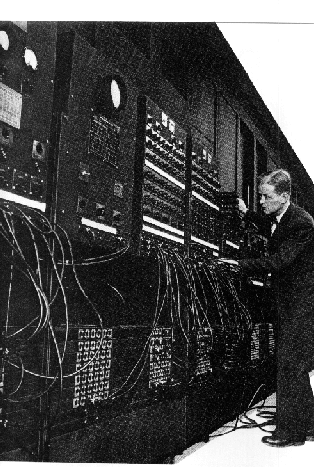
The first substantial computer was the giant ENIAC machine by John W. Mauchly and J. Presper Eckert at the University of Pennsylvania. ENIAC (Electrical Numerical Integrator and Calculator) used a word of 10 decimal digits instead of binary ones like previous automated calculators/computers. ENIAC was also the first machine to use more than 2,000 vacuum tubes, using nearly 18,000 vacuum tubes. Storage of all those vacuum tubes and the machinery required to keep the cool took up over 167 square meters (1800 square feet) of floor space. Nonetheless, it had punched-card input and output and arithmetically had 1 multiplier, 1 divider-square rooter, and 20 adders employing decimal “ring counters,” which served as adders and also as quick-access (0.0002 seconds) read-write register storage.
Eniac Computer
The executable instructions composing a program were embodied in the separate units of ENIAC, which were plugged together to form a route through the machine for the flow of computations. These connections had to be redone for each different problem, together with presetting function tables and switches. This “wire-your-own” instruction technique was inconvenient, and only with some license could ENIAC be considered programmable; it was, however, efficient in handling the particular programs for which it had been designed. ENIAC is generally acknowledged to be the first successful high-speed electronic digital computer (EDC) and was productively used from 1946 to 1955. A controversy developed in 1971, however, over the patentability of ENIAC’s basic digital concepts, the claim being made that another U.S. physicist, John V. Atanas off, had already used the same ideas in a simpler vacuum-tube device he built in the 1930s while at Iowa State College. In 1973, the court found in favor of the company using Atanas off claim and Atanas off received the acclaim he rightly deserved.
PROGRESSION OF HARDWARE
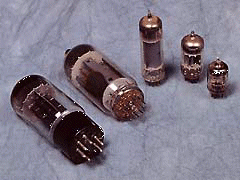
In the 1950’s two devices would be invented that would improve the computer field and set in motion the beginning of the computer revolution. The first of these two devices was the transistor. Invented in 1947 by William Shockley, John Bardeen, and Walter Brattain of Bell Labs, the transistor was fated to oust the days of vacuum tubes in computers, radios, and other electronics. The vacuum tube, used up to this time in almost all the computers and calculating machines, had been invented by American physicist Lee De Forest in 1906. The vacuum tube, which is about the size of a human thumb, worked by using large amounts of electricity to heat a filament inside the tube until it was cherry red. One result of heating this filament up was the release of electrons into the tube, which could be controlled by other elements within the tube. De Forest’s original device was a triode, which could control the flow of electrons to a positively charged plate inside the tube. A zero could then be represented by the absence of an electron current to the plate; the presence of a small but detectable current to the plate represented a one.
Transistors
Vaccum Tubes
VACUUM TUBES
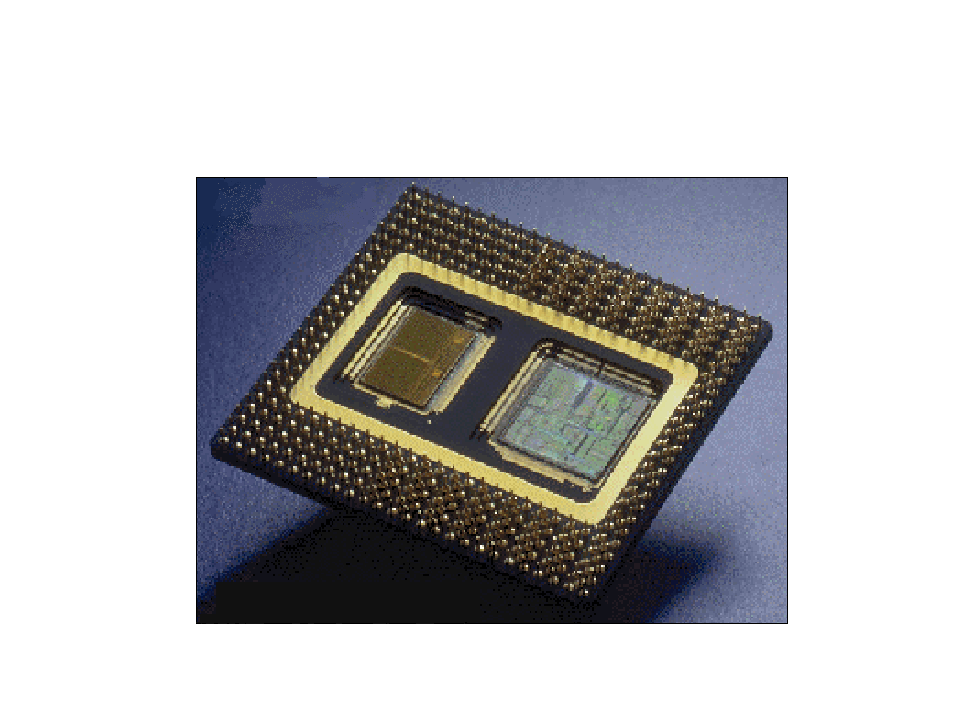
were highly inefficient, required a great deal of space, and needed to be replaced often. Computers of the 1940s and 50s had 18,000 tubes in them and housing all these tubes and cooling the rooms from the heat produced by 18,000 tubes was not cheap. The transistor promised to solve all of these problems and it did so. Transistors, however, had their problems too. The main problem was that transistors, like other electronic components, needed to be soldered together. As a result, the more complex the circuits became, the more complicated and numerous the connections between the individual transistors and the likelihood of faulty wiring increased. In 1958, this problem too was solved by Jack St. Clair Kilby of Texas Instruments. He manufactured the first integrated circuit or chip. A chip is really a collection of tiny transistors which are connected together when the transistor is manufactured. Thus, the need for soldering together large numbers of transistors was practically nullified; now only connections were needed to other electronic components. In addition to saving space, the speed of the machine was now increased since there was a diminished distance that the electrons had to follow.
Silicon Chip
Circuit Board
MAINFRAMES TO PCS
The 1960s saw large mainframe computers become much more common in large industries and with the US military and space program. IBM became the unquestioned market leader in selling these large, expensive, error-prone, and very hard to use machines.
A veritable explosion of personal computers occurred in the early 1970s, starting with Steve Jobs and Steve Wozniak exhibiting the first Apple II at the First West Coast Computer Faire in San Francisco. The Apple II boasted built-in BASIC programming language, color graphics, and a 4100 character memory for only $1298. Programs and data could be stored on an everyday audio-cassette recorder. Before the end of the fair, Wozniak and Jobs had secured 300 orders for the Apple II and from there Apple just took off.
Also introduced in 1977 was the TRS-80. This was a home computer manufactured by Tandy Radio Shack. In its second incarnation, the TRS-80 Model II, came complete with a 64,000 character memory and a disk drive to store programs and data on. At this time, only Apple and TRS had machines with disk drives. With the introduction of the disk drive, personal computer applications took off as a floppy disk was a most convenient publishing medium for distribution of software.
IBM, which up to this time had been producing mainframes and minicomputers for medium to large-sized businesses, decided that it had to get into the act and started working on the Acorn, which would later be called the IBM PC. The PC was the first computer designed for the home market which would feature modular design so that pieces could easily be added to the architecture. Most of the components, surprisingly, came from outside of IBM, since building it with IBM parts would have cost too much for the home computer market. When it was introduced, the PC came with a 16,000 character memory, keyboard from an IBM electric typewriter, and a connection for tape cassette player for $1265.
By 1984, Apple and IBM had come out with new models. Apple released the first generation Macintosh, which was the first computer to come with a graphical user interface (GUI) and a mouse. The GUI made the machine much more attractive to home computer users because it was easy to use. Sales of the Macintosh soared like nothing ever seen before. IBM was hot on Apple’s tail and released the 286-AT, which with applications like Lotus 1-2-3, a spreadsheet, and Microsoft Word, quickly became the favorite of business concerns.
That brings us up to about ten years ago. Now people have their own personal graphics workstations and powerful home computers. The average computer a person might have in their home is more powerful by several orders of magnitude than a machine like ENIAC. The computer revolution has been the fastest growing technology in man’s history.
Many Inventions have been directed toward mechanization in various fields of human endeavors. Some machines are made to reduce our workload, whereas. Some are made entirely for our pleasure and enjoyment. A typewriter can only type letter A, cassette player can only play record music. A video game player can only be use for playing games. A television can only show movies and television program. The telephone can only be used to send and received calls and message (sms).
However; computer is a special invention that amazes human being because unlike all other machine perform all these function and much more you can create your programs to suit this is because its uses are because a part and parcel almost everybody’s life. This is because its uses are varied, it can be modified to do anything human imagination can make it do and therefore its popularity is expanding day –in- day –out.
Several attempts have been made to define a computer in various ways. A computer is a machine, which accept and processes data by following a set of instruction to produce an accurate and efficient result. Looking at a computer can also be seen as a powerful digital device which has the capability to accept as input, apply the service of arithmetic and logical operation as output information at a very fast speed. Since the ultimate aim of computer is to produce information, the art of computing is often referred to as information processing.
MEANING OF COMPUTER
A computer is therefore define as electronic device which ACCEPT data (as input), STORE them as (as storage), PROCESSES them (as process) according to precise/ logical instruction (as program), to produce a fast, an accurate and efficient result (information), as it OUTPUT. The values of the computer lie solely on it high speed (due to its electronic nature), ability to store large amount of data, the unfailing accuracy and precision. These account for its supremacy over manual computation.
LOOKING AT DATA REPRESENTATION
It is important to note that there are two basic types of data which are stored and processed by computer namely;
Characters include
26 alphabet
13 special symbol including blank space e.g &,/>)’%$@ E.T.C
Number; there are 10 digit/decimals e.g. 0-9( 1,2,3,4,5,6,7,8,9,0)
The two basic type of data are stored or represented in the computer by two method namely
External Data Representation
Internal Data Representation
Note: We look at these two types, we comparing the two together to see that the work hand in hand with each other.
The character and number fed (sent) into the computer and the output from the computer and the output from the computer must be in a form is usable/ readable by people. For this purpose natural language, symbols and decimal digit are appropriate. These constitute the external data representation let look at it in the way, the representation of data of data inside a computer match the technology used by the computer to store and process data. Thus, we should first determine the most appropriate INTERNAL representation of data and then specify unique transformation rules to convert EXTERNAL representation to INTERNAL representation and vice versa. Hence the data that fed into the computer, as External representation is first convergences into internal representation (machine sensible form) before any processing on it.
After processing, the internally represented data is reconverted back and set into the outside world (user) as externally representation and vice versa, is done by a language translator.
Since computer is also a computing device, it is also known as a processor when computer is processing it’s actually performs a number of separate activities, which include; input, process, store and output.
The inputs are known as data, output as information, and calculation to be performed on the data is the process. The same idea can be explained through below
Data
Processor
Information
DATA PROCESSING CYCLE
The diagram above shows the data processing cycle where the data is fed to the processor for it to be processed into the output. Let’s understand the concept by visiting our favorable place at home and inside the kitchen.
Do you have strawberry milk shake? Let’s see how it’s can be prepared;
strawberry crush +milk
Mixer
Milk shaker
Looking at the diagrams above shows another food example of data processing cycle in the kitchen.
LOOKING AT THE DATA CYCLE
First let’s discuss about the meaning of the following; ……………..
DATA: are raw facts which comprise of numbers, alphabets, or any other form like pictures, sound, video, etc that are put into the computer through the input units (ports) and computer transform them into a form that could be processed by the computer.
The data which is put in through the input unit could either be processed by the central processing unit or stored in memory. Data can also be referred to as INPUT.
Example of data could be; old, udo 16 years, 10/8/2005 etc. Data on its own is not that useful unless it is arranged or combined with some more data.
Takes the example above its note has udo as a data has been, but it combines with some data like; udo will be 16 years as at 10/02/2005.
INFORMATION
This is the result of a processed data, when data has been acted upon to give it more meaning, it is called information. It’s also called OUTPUT. it is displayed in a user readable form, or in a way that the users needed it. It could be either soft copy (held by the monitor) or the hard copy (printed out from the printer)
PROCESSING
In computing, a process is the instance of a computer program that is being executed by one or many threads. It contains the program code and its activity. … Multitasking is a method to allow multiple processes to share processors (CPUs) and other system resources.












 Exclusive Update
You must be logged in to post a comment.